Assign cases to your team automatically
Published 20 October 2026Reviewed 20 October 20262 min read
On this page
Step by step
Open Assignment
Go to Settings → Assignment. Rules are tried from the top, so the rule at the top is looked at first.
Add a rule
Press New rule and give it a Name, for example “German-speaking patients”.
Choose the conditions
Tick the matching ones in Person speaks, Person lives in, Came from and Services. A condition left empty matches everyone; with all of them empty the rule matches every case.
Pick the members
Choose people in Give the cases to. Cases are handed out in turn, in this order.
Put the rule to use
Keep The rule is in use on and save. To change the order, move the rule up or down in the list.
See the result
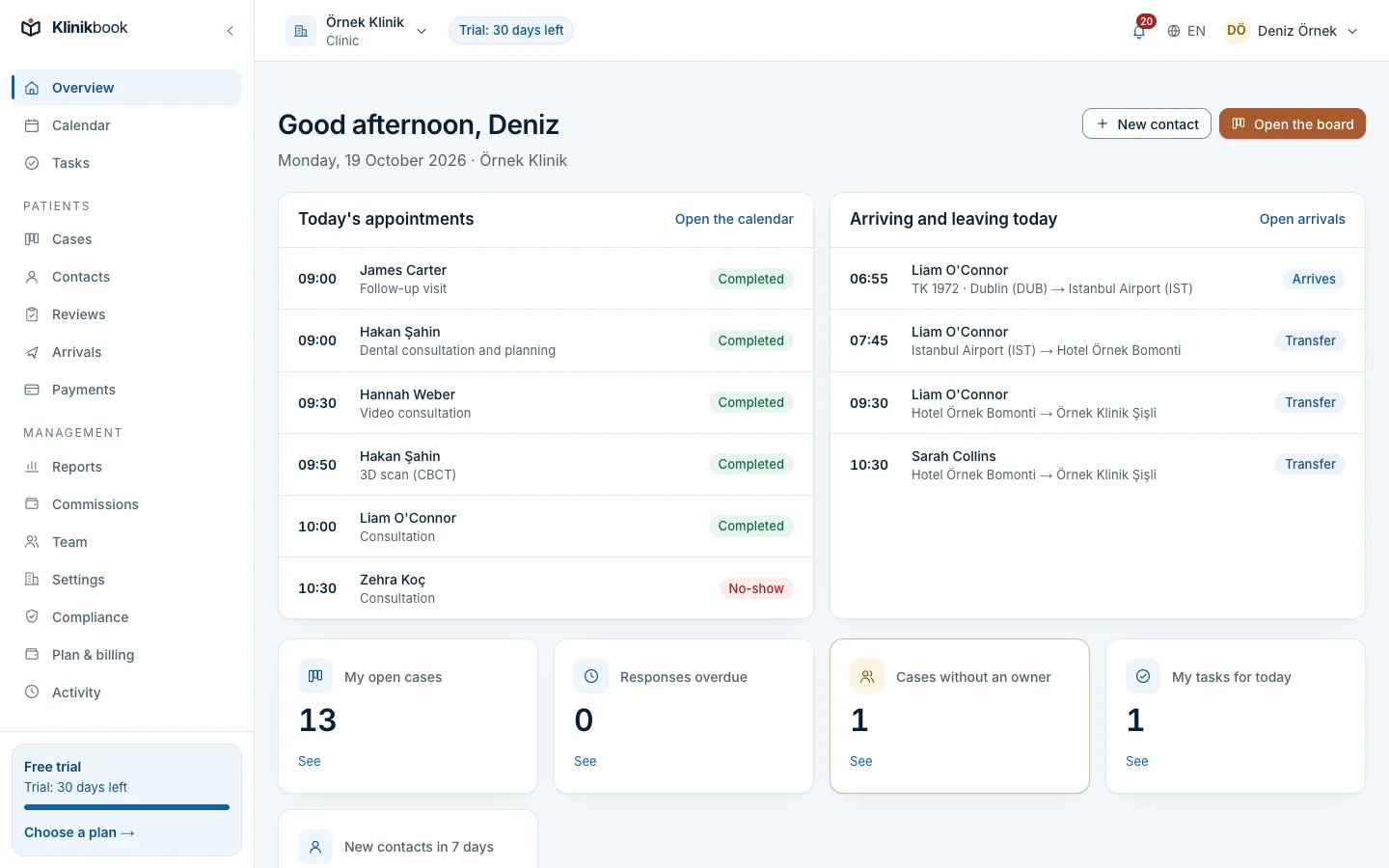
The timeline of a case opened by assignment says the assignment rules gave it to the member.
What if no rule matches?
- If you open the case by hand, it is yours.
- A case from a lead form stays unowned; the team members who can distribute cases are notified and the case shows under Unassigned cases.
Common questions
Do changed rules affect existing cases?
No. Rules work only for newly opened cases without an owner. You change an existing case's owner from the case itself.
What happens to a member who leaves?
They are removed from the rules, and the cases they owned become unassigned.
Related reading
30-day free trial
Try Klinikbook with your own team
Every feature is open for 30 days, and no card is needed to start.