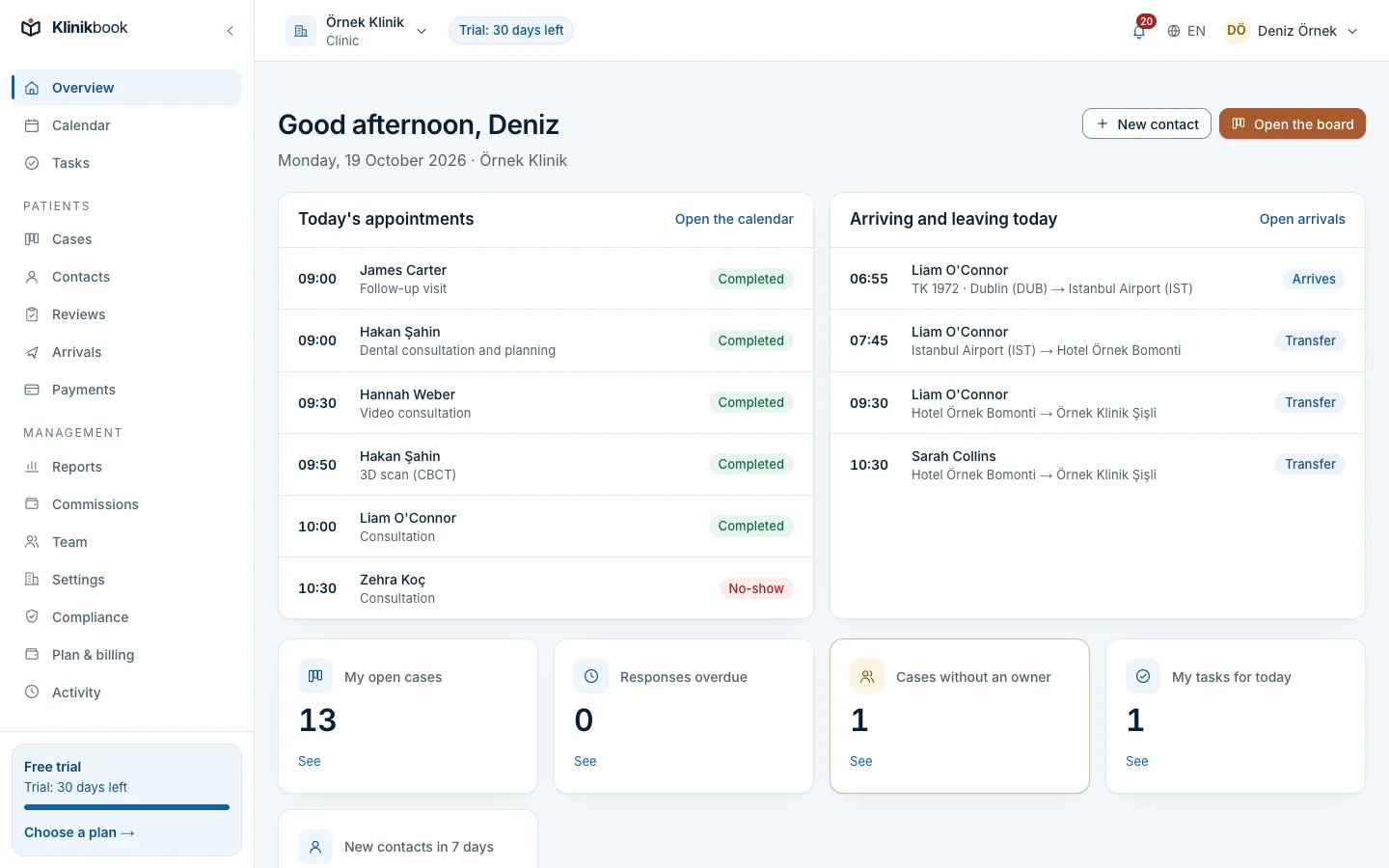
Book, move and follow appointments
Published 20 October 2026Reviewed 20 October 20263 min read
On this page
Set up the calendar and book the first appointment
The calendar is ready for appointments once your locations, practitioners and appointment types are entered. Owners and administrators change these in Settings.
Add the location
In Settings → Locations press Add location and enter the name, address, time zone and opening hours. Appointments are kept in that location's time zone.
Add the resources
In Settings → Resources add the practitioners you book, then the rooms and devices. Each becomes a column in the calendar. If a practitioner signs in to the app, link them in the Team member field.
Define the appointment types
In Settings → Appointment types press Add type: the name, duration, free time before and after, and the resources it needs. Each resource group means "one of these", for example one of these practitioners and one of these rooms.
Open the calendar
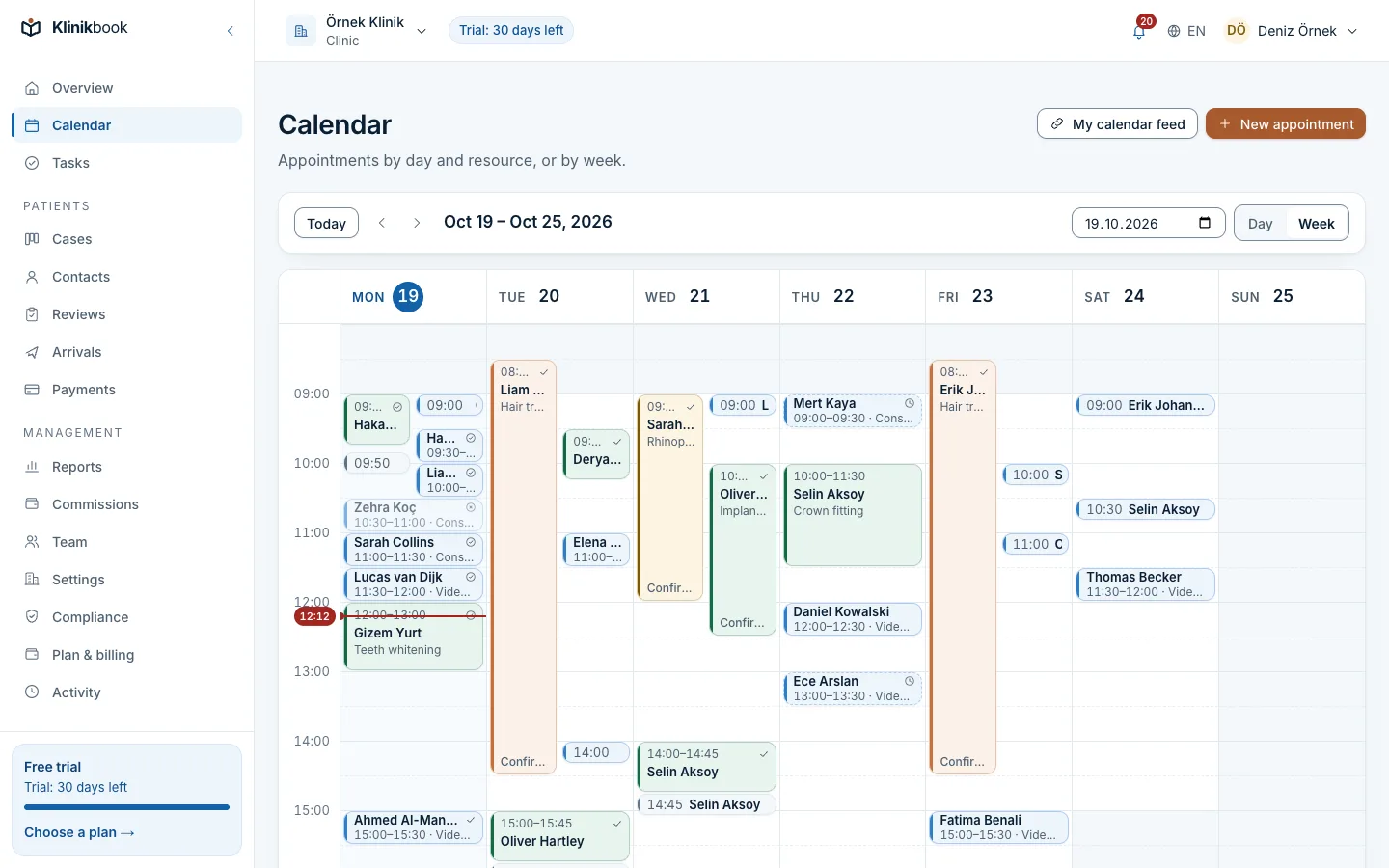
On the Calendar screen choose the Day or Week view; with more than one location, filter by location. In the day view every practitioner, room and device is its own column.
Book the appointment
Press New appointment or pick a free time in a column. Choose the person, the appointment type and the time. If you leave the resource open, the calendar uses the first free one. You can have the person e-mailed, and link the appointment to a case.
Move it if needed
Drag the appointment to another time or resource and confirm. A move over another appointment, or onto a resource the type cannot use, is refused and the screen says why.
Appointment statuses
Open the appointment to change its status. Every change is written to the case timeline and the activity log.
- Waiting
- When to use itA booking from the booking page that needs your confirmation. You book it or cancel it.
- Booked / Confirmed
- When to use itA time has been given; it becomes Confirmed once the patient confirms from the link.
- Arrived
- When to use itThe patient is at the clinic. The case moves to the pipeline's "arrived" stage.
- Completed
- When to use itThe visit is over. It can be taken back to Arrived if needed.
- No-show
- When to use itThe patient did not come. The time is released for someone else, and the person's record counts the no-show.
- Cancelled
- When to use itThe appointment was cancelled. You can write a cancellation reason for the team; it is not sent to the person.
Reminders and your own calendar
- Reminders are set under Settings → Booking page, in the Reminders section: up to three, before the appointment, in the person's language, with a confirm or cancel link. The default is 24 hours before.
- My calendar feed on the Calendar screen creates a read-only address that you add as a subscription to the calendar app on your phone or computer. The feed holds no patient names; the address is shown once and Stop the feed switches it off.
- In the note field write administrative information only, never clinical detail.
Frequently asked questions
Can I book outside opening hours?
Yes. Team members can book outside working hours; only the booking page offers times within opening hours.
What do I do when a practitioner goes on leave?
In Settings → Resources use Add time away to enter the leave. The booking page offers no times for that practitioner during it.
Is the patient told when I move an appointment?
If you choose to e-mail the person when moving, they are told the new time. If you do not, nothing is sent.
Related reading
30-day free trial
Try Klinikbook with your own team
Every feature is open for 30 days, and no card is needed to start.