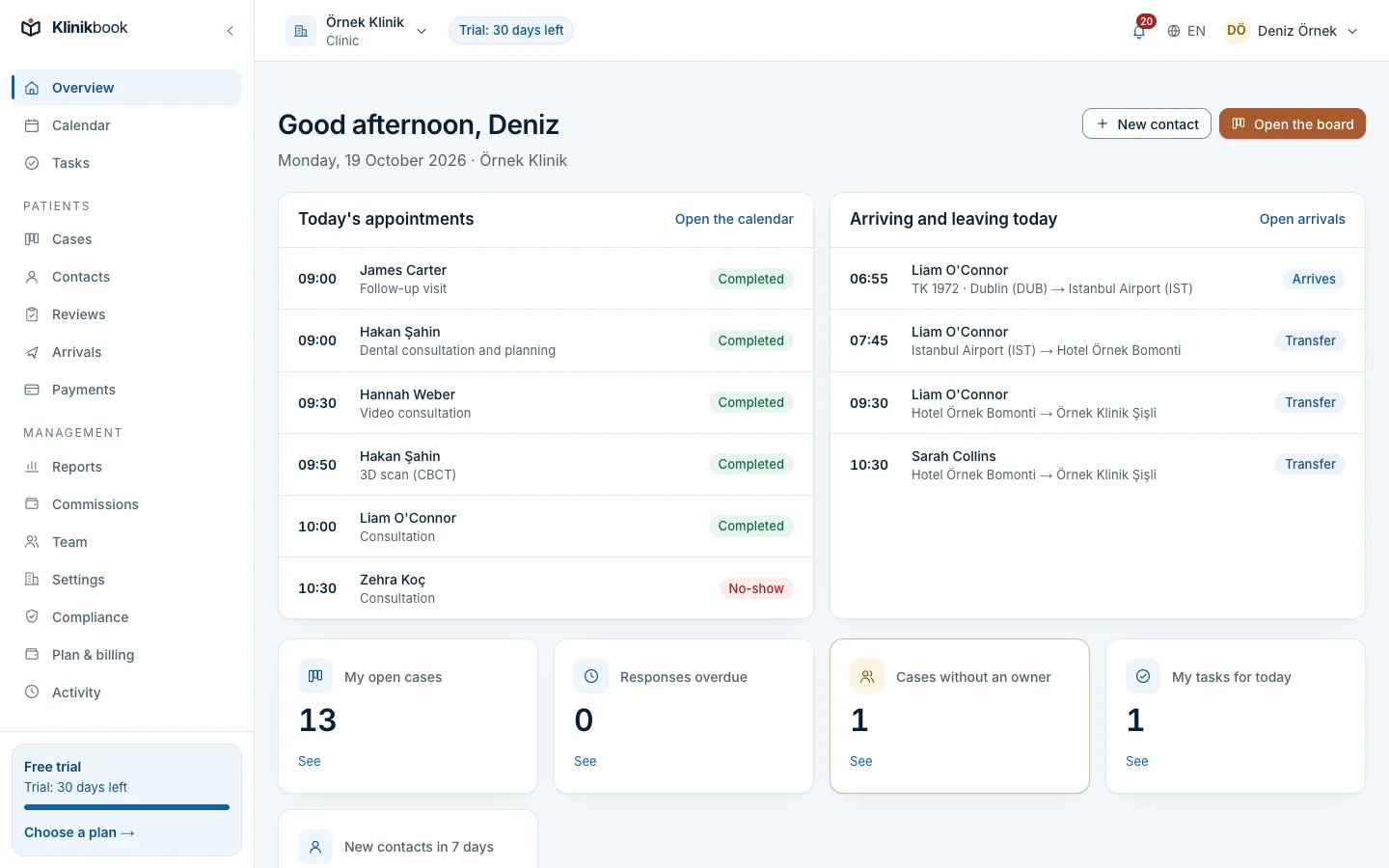
Open the booking page and add it to your website
Published 20 October 2026Reviewed 20 October 20263 min read
On this page
Open the page
The calendar must be ready first: locations, resources and appointment types entered (see Book, move and follow appointments).
Publish the privacy notice
Before you can open the booking page you must publish your privacy notice in Settings → Patient portal. The screen shows a reminder with a link to the portal settings.
Choose which types are offered
In Settings → Appointment types open the type you want to offer and tick Offered on the booking page.
Decide how an online booking is confirmed
On the same type screen, online bookings either Are booked at once or Wait for your confirmation. With the second, the booking arrives as Waiting and you book it or cancel it.
Set the page up
In Settings → Booking page tick Open the booking page, write the introduction for each language, and choose Earliest booking (how much notice you need), Bookable ahead and Times offered every. Save.
Decide whether bookings open a case
If you switch on Open a case for each online booking, the case goes through your assignment rules like a lead-form enquiry and opens in the pipeline you choose.
Share or embed the page
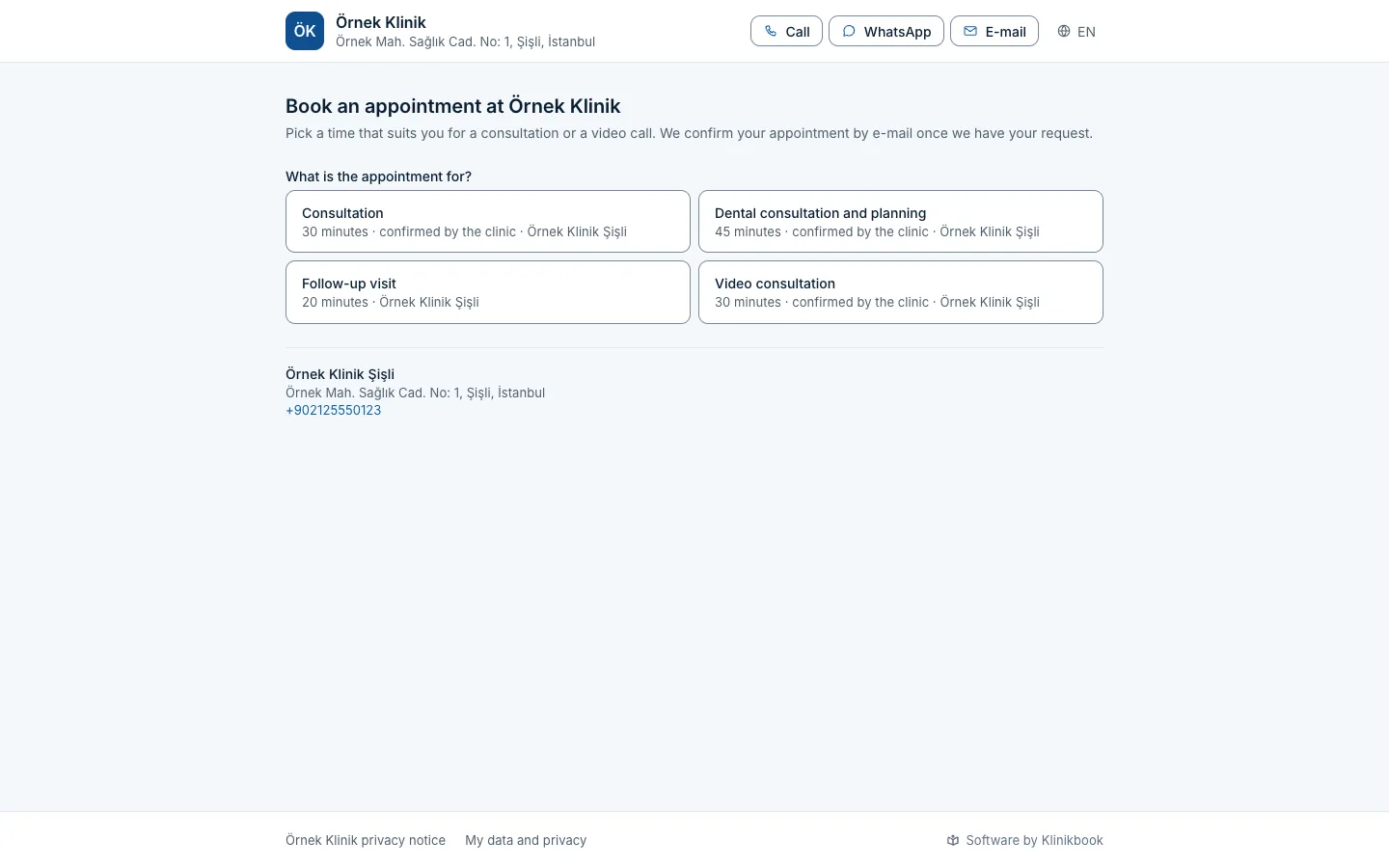
The Your page section of the same screen shows the Page address and the Embed code. Put the address on Instagram or in messages, or paste the code where the form should appear on your site. Open the page shows what the patient sees.
What the patient sees and does
- The page shows only your workspace's name, locations, hours, practitioners (with their registered title and specialty) and the appointment types you offer. A price is never shown.
- The patient picks a type, optionally the practitioner, a day and a free time, enters their name and contact details, confirms the privacy notice and may choose marketing consent.
- The patient is added to your contacts or matched with an existing one, and the team members who keep the calendar get a notice.
- The patient receives an e-mail. From its link they can confirm the appointment and, if you allowed it in Settings, cancel it until the cut-off time you set. A request waiting for your approval can always be withdrawn.
Frequently asked questions
Why does the page offer no times?
The location's opening hours, the practitioner's own hours and their time away are all checked. No times appear if the practitioner is away, the location is closed, or the Earliest booking notice has not passed.
What if two patients pick the same time together?
The second is told the time was taken and the page reloads the free times.
Can I close the page for a while?
Yes. Untick Open the booking page in Settings → Booking page and save.
Related reading
30-day free trial
Try Klinikbook with your own team
Every feature is open for 30 days, and no card is needed to start.