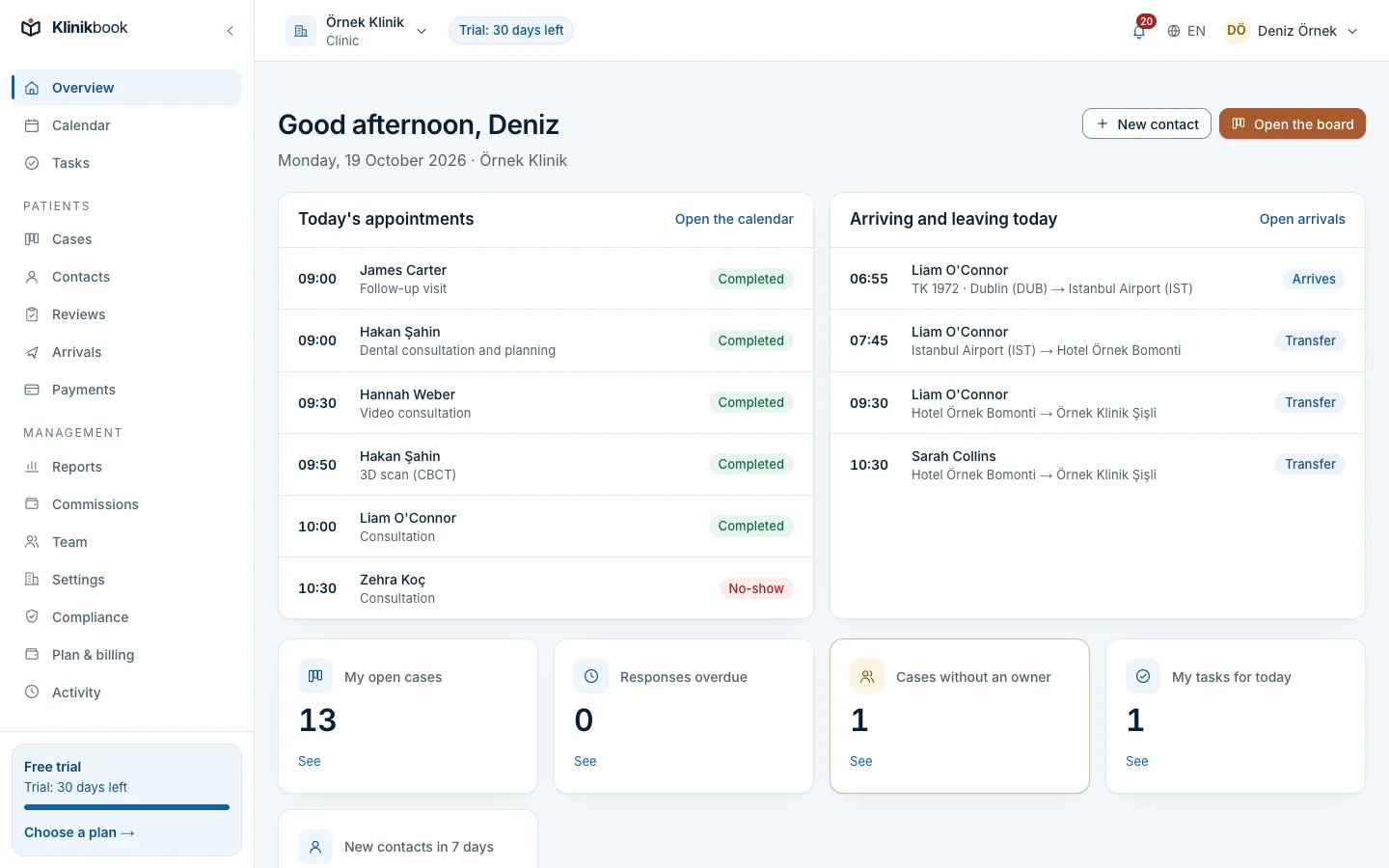
The patient portal: what patients see and what you set up
Published 20 October 2026Reviewed 20 October 20263 min read
On this page
Get the portal ready
Check the portal address
Settings → Patient portal shows the Portal address. A new workspace gets one from its name; you can change it using lower-case letters, digits and hyphens.
Publish the privacy notice
On the same screen enter the address of your privacy notice, or use the one you published in the compliance center. Without it, intake forms cannot be requested and forms take no enquiries.
Enter your contact details
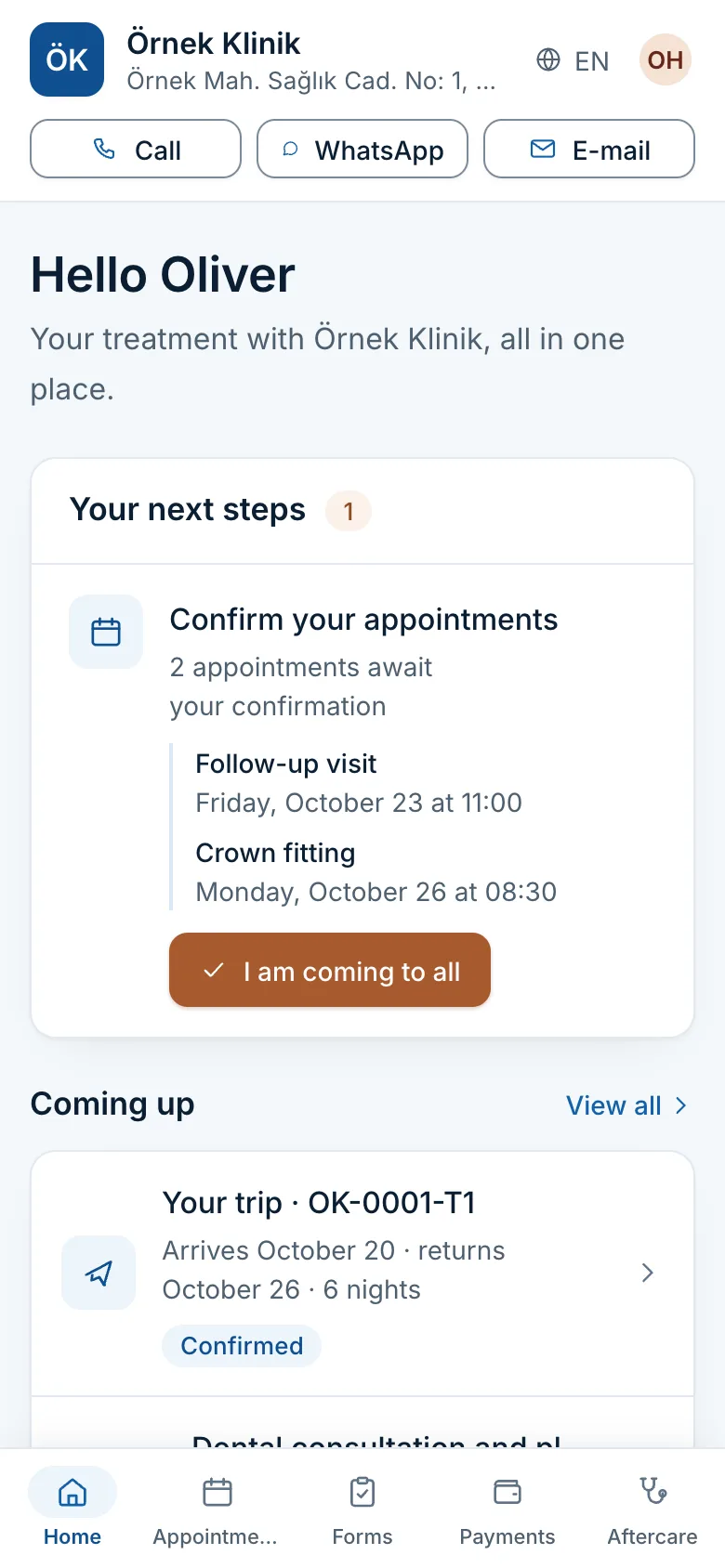
In Settings → Workspace, under How patients reach you, fill in E-mail for patients and Phone and WhatsApp. Patients call or write to you with these on every portal page, and the e-mail is the reply address of the messages patients receive.
Send the patient the link
The intake, quote, appointment and trip-plan e-mails carry the portal link themselves. If you prefer another channel, copy the link from the relevant screen.
What the patient does on the portal
- Forms
- What the patient doesFills in the intake form, adds documents and guided photos, gives explicit consent and sends it
- Where you prepare itThe Intake tab on the case
- Quotes
- What the patient doesCompares the options side by side, reads the terms and accepts one; that creates a payment plan
- Where you prepare itQuotes
- Payments
- What the patient doesSees the payment plan, your bank account and the reference to write; sends a receipt
- Where you prepare itPayments
- Appointments
- What the patient doesSees, confirms or cancels an appointment; books a new one if the booking page is open
- Where you prepare itCalendar
- Trip
- What the patient doesSees flights, stay, transfers with the driver to call and treatment days in their own language
- Where you prepare itThe Trips tab on the case
- Aftercare
- What the patient doesAnswers check-in questions, adds photos, downloads the documents you gave
- Where you prepare itSettings → Aftercare
- My data
- What the patient doesSees their consents, withdraws optional ones, opens a data request
- Where you prepare itCompliance center
Frequently asked questions
Is the portal visible in search engines?
No. No page of the portal is indexed; patients reach it only through the links you send.
What if the link has expired?
The patient requests a code from the portal address using their e-mail. You can also send a new link; it replaces the previous one.
Which languages does the portal use?
Turkish and English. The language comes from the address setting, then the patient's choice, then their browser.
Related reading
30-day free trial
Try Klinikbook with your own team
Every feature is open for 30 days, and no card is needed to start.