On this page
Step by step
Add your bank account
Under Settings → Bank accounts press Add an account and enter the bank, the account holder, the IBAN and the currency. The IBAN is checked by its check digits and spaces are fine. While Shown to patients is on, the patient sees the account on the portal.
See the schedule
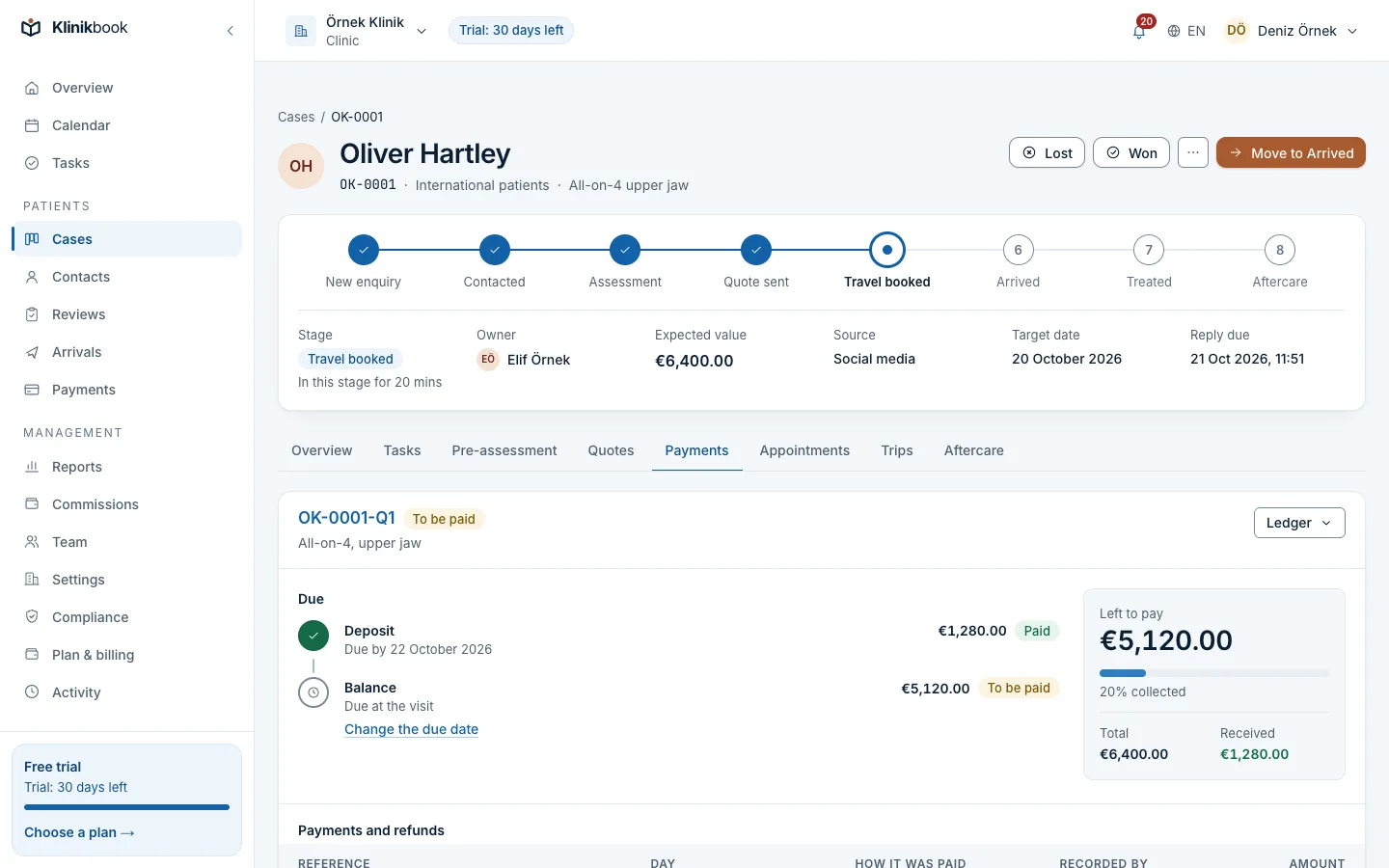
When a quote is accepted, a payment schedule with the deposit and the balance and their due dates appears under Payments and on the case's Payments tab.
The patient sends a receipt
After the transfer the patient presses Send the receipt on the portal and adds a photo or file of the receipt, the amount and the day. Members who manage payments are notified.
Check the receipt
Under Payments pick the Receipts to check filter, open the schedule and look at the receipt under Receipts from the person. If the money has arrived in your account, choose Verify the receipt: the payment is recorded and the patient is e-mailed.
Reject it if needed
If the receipt is wrong or incomplete, choose Reject the receipt and write the reason in Why it is rejected. The patient reads it on the portal and by e-mail and can send the right receipt.
Record other payments
For a card at the clinic, cash or a payment link, choose Record a payment and pick For (the schedule or one item), How it was paid, the amount and the day. The amount cannot exceed what is left and the day cannot be in the future.
Refunds and cancelling
Record a refund up to what was received. If the schedule no longer applies, choose Cancel the schedule and write the reason; nothing more is then due, but refunds can still be recorded.
Good to know
- While the schedule is open you can change the due dates of the deposit and the balance.
- Payments cover the items in order, deposit first.
- An item past its due date shows as overdue.
- Patient reminders are under Settings → Patient reminders: e-mails before a payment is due, when it is overdue and before a quote expires; they are on by default.
- The case timeline shows only the payment reference, never the amount; amounts are shown only to people with payment permissions.
Common questions
Can I take card payments online?
Klinikbook does not take payments. You record what you received through your own payment provider's link by choosing Payment link as how it was paid.
What happens if I change the bank account?
Patients see the new account from then on. If you stop using an account, turn it off rather than deleting it; accounts are never deleted.
Can I get the payments as a table?
Yes. The list under Payments downloads as a CSV file with the filters you set.
Related reading
30-day free trial
Try Klinikbook with your own team
Every feature is open for 30 days, and no card is needed to start.