How to set up online appointment booking for a clinic
Published 23 October 2026Reviewed 23 October 20268 min read
On this page
Set-up steps
1. Enter locations and opening hours
For each site: address, time zone and weekly hours, including breaks such as lunch. Mark closed days and holidays separately.
2. Define resources
Doctors, rooms and devices are separate resources. Each has its own hours, time off and the sites it works at.
3. Write the appointment types
First consultation, check-up, impression, treatment day and so on; for each a duration, buffer time and the resources it needs.
4. Choose how bookings are taken
Should an appointment be confirmed at once, or arrive as a request that your team approves?
5. Set notice and horizon
How soon ahead at the earliest and how far ahead at the latest someone can book.
6. Set reminders and the cancellation rule
When reminders go out; whether patients can cancel online and the cut-off.
7. Publish and add the page
Put the booking link on your website, social profiles and e-mail signature, or embed it in your site.
8. Test it
Book a few appointments as a patient, cancel them, and try to take the same time from a second tab.
How do you decide appointment types and durations?
Base durations on the real lengths of recent weeks, not on guesses. Keep the number of types small; each type is a separate decision.
- First consultation
- When setting the durationInclude the patient’s time to explain and the doctor’s to listen; new patients take longer
- Example resource needDoctor + consulting room
- Check-up
- When setting the durationShort; most take about the same time
- Example resource needDoctor
- Treatment or procedure day
- When setting the durationThe procedure plus preparation and recovery
- Example resource needDoctor + procedure room + device
What is buffer time and how much should you add?
Buffer time is extra time before or after an appointment during which the doctor or room is blocked: room preparation, cleaning, writing notes, sterilising a device. The duration the patient sees does not change, but the calendar keeps that time clear so back-to-back appointments do not collide.
Set it per procedure, not by a general rule: add it after procedures that need cleaning and preparation, after consultations with long notes, and on the device resource for anything that ties up equipment. Too much buffer means empty slots, too little means running late; adjust after two weeks by looking at real delays.
Resources: doctor, room and device
One appointment can hold several resources at once. The calendar should offer a time only when every resource needed is free.
- Doctor
- Why define it separatelyHas their own time off, site and hours
- TipLetting patients choose a doctor, or “no preference”, changes how full the diary gets
- Room
- Why define it separatelyIf several doctors share a room, double booking cannot be stopped without making the room a resource
- TipIf room use is limited, add the room to the type’s needs
- Device
- Why define it separatelyA single laser or X-ray unit can be the bottleneck
- TipGive device appointments their own buffer
- “One of these” group
- Why define it separatelyWhen you have three identical rooms and any will do
- TipThe system picks the first free one; do not name rooms one by one
Instant confirmation or approval?
- Instant
- When it fitsAppointments with a clear duration and terms, one resource, low risk (check-ups, standard consultations)
- Watch forAdd a short description to prevent picking the wrong type
- Request with approval
- When it fitsLong, costly or multi-resource procedures needing intake first; patients from abroad
- Watch forReply to the request the same day; waiting loses the patient
- Mixed
- When it fitsCheck-ups instant, treatments by approval
- Watch forSet per type
How do you prevent double booking?
- The system must not give a second appointment to a time a resource already holds. This should be enforced in the data layer as well as the interface; hiding a time on screen can still collide when two people click at once.
- Appointments your team books by hand must go into the same resource calendars; those taken by phone and written in a notebook are the most common cause of double booking.
- A cancelled appointment or no-show should release the resource, and the time should reappear on the booking page.
- If two people try the same time simultaneously, the second should get a clear message and be offered another time.
Reminders and cancellation
Reminders are the easiest efficiency gain in online booking. A confirmation when the appointment is made and a reminder asking for a reply 24 to 48 hours before is a good start for most clinics; confirming and cancelling should take one tap. For timing and wording in detail see the no-show guide.
If patients can cancel, state the cut-off (for example 24 hours before) in the booking details. Freeing the cancelled slot for another patient at once is the real payoff.
How do you add the booking page to your website?
- The simplest is a link: a “Book an appointment” button that goes to the booking page. Use the same link on your website, your Google business profile and your e-mail signature.
- If you want the form to appear inside your site, use an embedded widget: add a script and a tag to the page and the booking form opens within your site.
- Either way, the page must work well on mobile; most patients arrive on a phone.
- Keep prices, reviews and medical claims off the page; show administrative details only, such as service, duration, doctor and address.
- Show the privacy notice at booking and offer consent choices separately.
How does this differ from MHRS?
- Who it is for
- MHRSPublic hospitals and family doctors (Ministry of Health)
- A clinic’s own online bookingPrivate clinics, practices and the organisation’s own services
- Who runs it
- MHRSThe Ministry of Health
- A clinic’s own online bookingThe clinic, which manages its own settings and calendar
- Who sets the rules
- MHRSThe Ministry (queue, confirmation, cancellation rules)
- A clinic’s own online bookingThe clinic (types, durations, resources, approval, reminders)
- Added flow
- MHRSNone
- A clinic’s own online bookingCan connect to quotes, intake, trips and aftercare
How do you do it in Klinikbook?
Enter locations, resources and types
In the booking settings, define locations and opening hours, doctor, room and device resources (with time off) and appointment types (5 minutes to 12 hours long, free time before and after, the resources needed, “one of these” groups).
Open the booking page
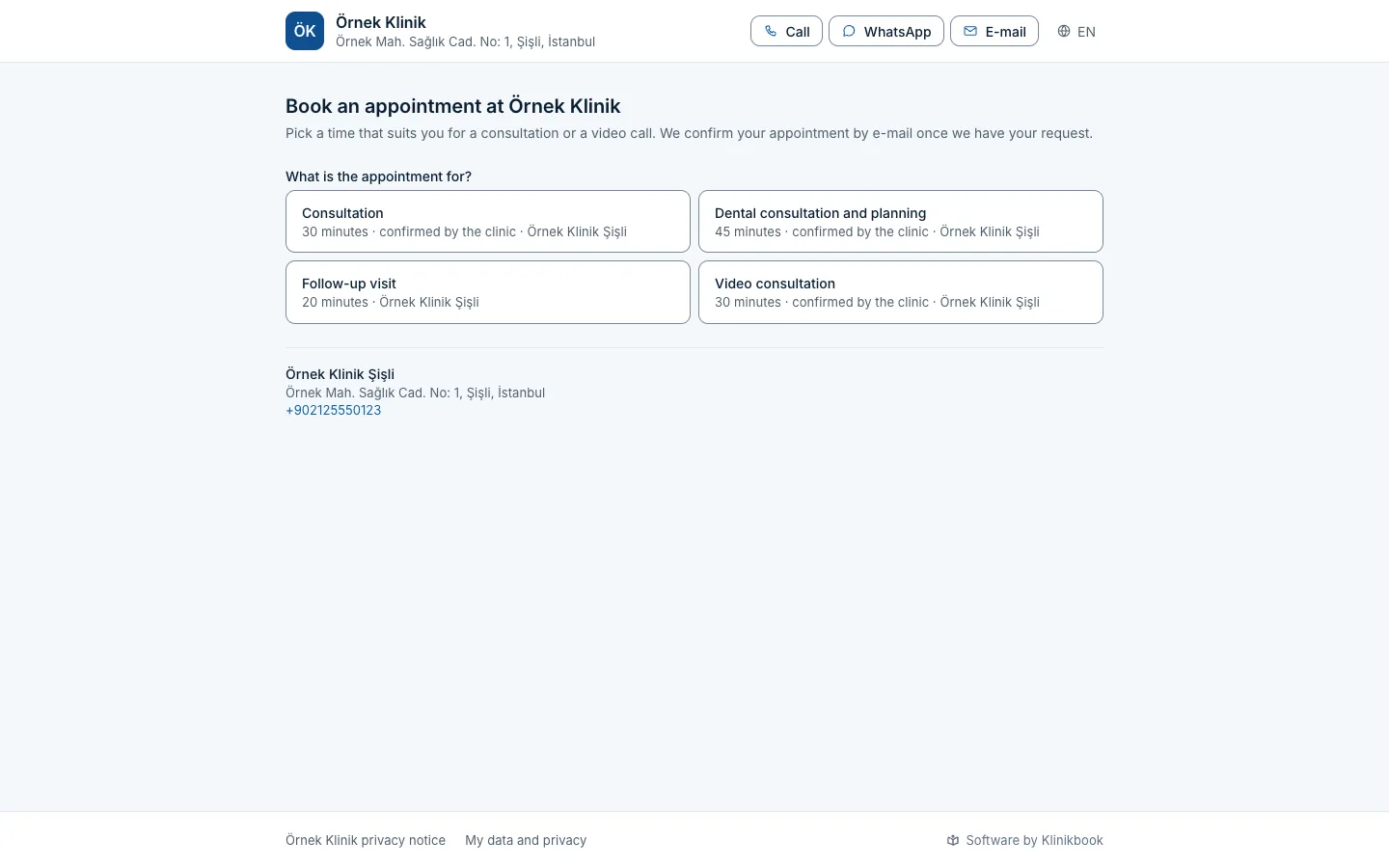
The page is published at ‘/{workspace}/book’ and shows services and doctors by name, duration and title only, with no prices or reviews. Notice, horizon, time step and whether a type is booked at once or waits for confirmation are set in the settings.
Choose reminders
Up to three reminders between 2 hours and 7 days before; the e-mails go in the patient’s language with a confirm-or-cancel link.
Add it to your site
The settings give you the page address and the embed code.
The booking joins the case
A booking made online matches or adds the contact and, if you want, opens a case; members are notified. Double booking is blocked in the database: a second booking for the same time at the same moment is answered ‘time taken’.
Watch the calendar
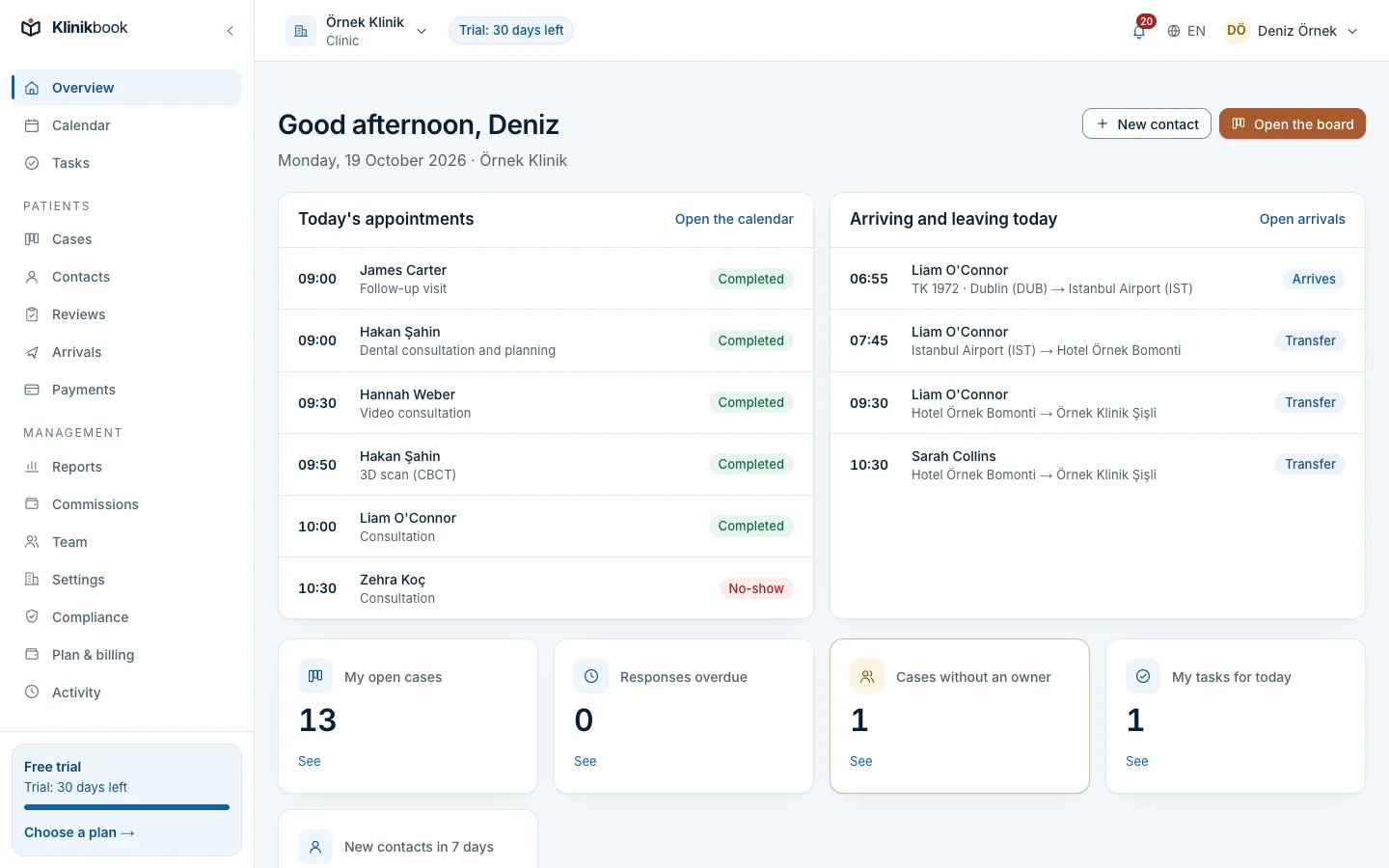
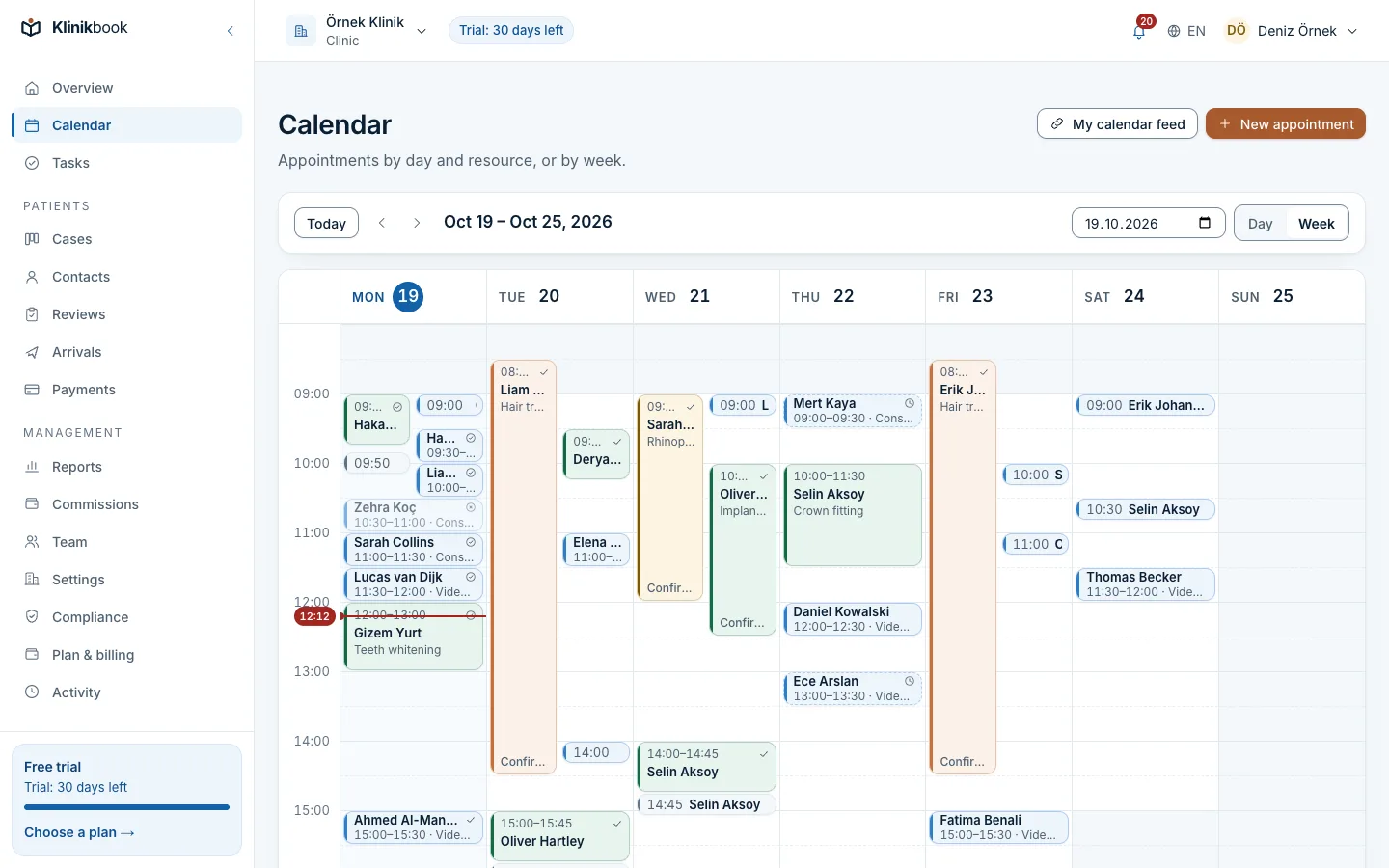
Members can drag and drop appointments in the day-by-resource or week view; doctors can add their own iCalendar feed to their phone (the feed carries no patient names).
Frequently asked questions
What do I need to set up online booking?
Definitions of locations and opening hours, resources (doctor, room, device) and appointment types, plus decisions on instant or approved booking, reminders and the cancellation rule. Once these are in a system you can add the booking page to your site as a link or an embedded widget.
Does online booking replace MHRS?
No. MHRS is the Ministry of Health’s system for public hospitals and family doctors. A private clinic’s appointments are managed in its own system; neither replaces the other.
Should appointments be confirmed instantly or approved?
Short, single-resource, standard appointments can be instant; long, costly appointments needing intake and those of patients from abroad should be requests with approval. You can set this per type.
How much buffer time should I set?
There is no general figure. Set it per procedure for room preparation, cleaning, notes and device preparation, then adjust after two weeks by looking at real delays.
How is double booking prevented?
A resource’s held time must not get a second appointment, and this has to be enforced at record level, not just by hiding the time on screen. Phone bookings must go into the same calendar.
Should the booking page show prices?
Administrative details are enough on a booking page; do not put prices or medical claims there. Price goes to the patient in a written quote, with its terms.
Can a patient from abroad book online?
Yes, but the time zone must be stated clearly, and the appointment often has to be settled together with flights and accommodation. For patients from abroad, approval-based requests and a trip plan therefore go together.
Sources
- MHRS Üzerinden Hastane Randevuları İçin “Randevuma Geleceğim” Onayı Alacağız — Ministry of Health of Türkiye (in Turkish), 17 April 2024
Open your booking page today
Booking page, calendar and reminders are in every Klinikbook plan. 30 days free, no card needed.
Related reading
Free tools
30-day free trial
Try Klinikbook with your own team
Every feature is open for 30 days, and no card is needed to start.